> ## Documentation Index
> Fetch the complete documentation index at: https://docs.shaktistudio.ai/llms.txt
> Use this file to discover all available pages before exploring further.
# Secrets
> Store and manage credentials used by integrations, clusters, registries, and deployments.
Secrets are secure credentials stored within the Shakti Studio platform that allow the platform to access external systems such as cloud accounts, container registries, model sources, or Kubernetes clusters.
Secrets typically include:
* Access keys
* API tokens
* Service account credentials
* Cluster authentication details
All secrets are stored securely and are only used for the specific integrations or deployments where they are referenced.
## Why secrets are used
Secrets are required to:
* Access cloud infrastructure for cluster creation or import
* Pull containers from private registries
* Download models from external sources
* Authenticate with Kubernetes clusters
Using secrets ensures credentials are not exposed in plain text, access can be centrally managed, and integrations can be reused across deployments.
## Add a Secret
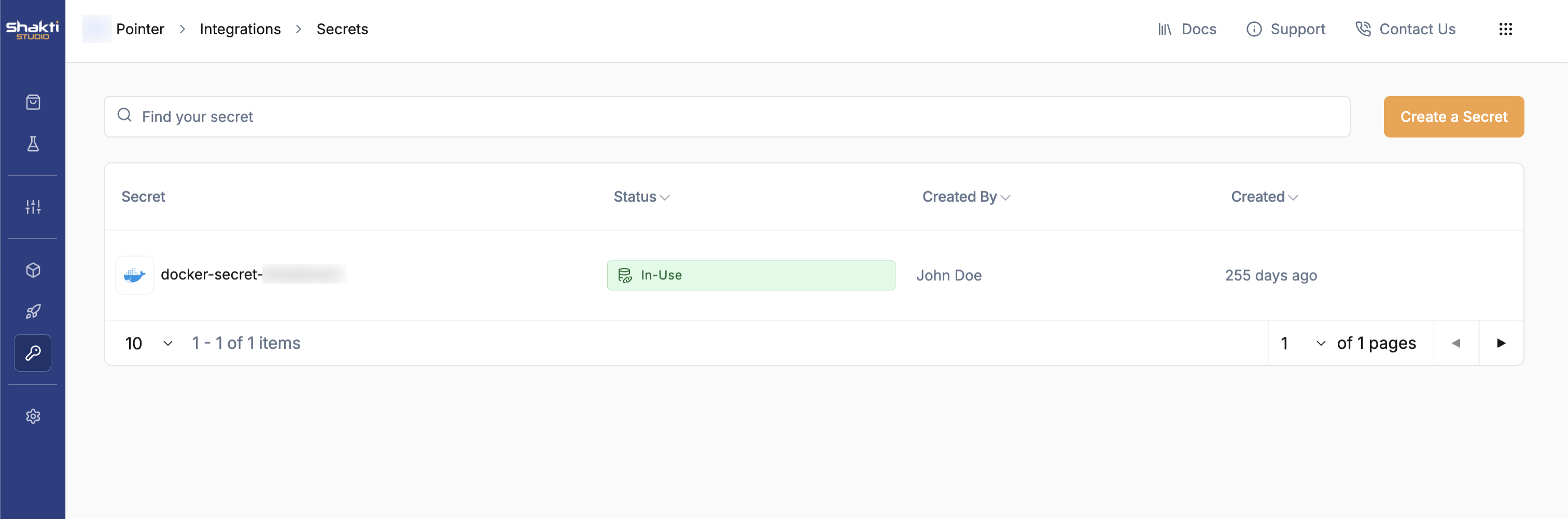
Go to **Integrations → Secrets** in the Shakti Studio UI.
Click the **Create Secret** button to open the secret creation form.
 Enter a descriptive **secret name** and choose the appropriate **secret type** from the dropdown menu (e.g., `AWS`, `GCP`, `Azure`, `Docker Hub`, `Hugging Face`, `Kubernetes`, `Generic`).
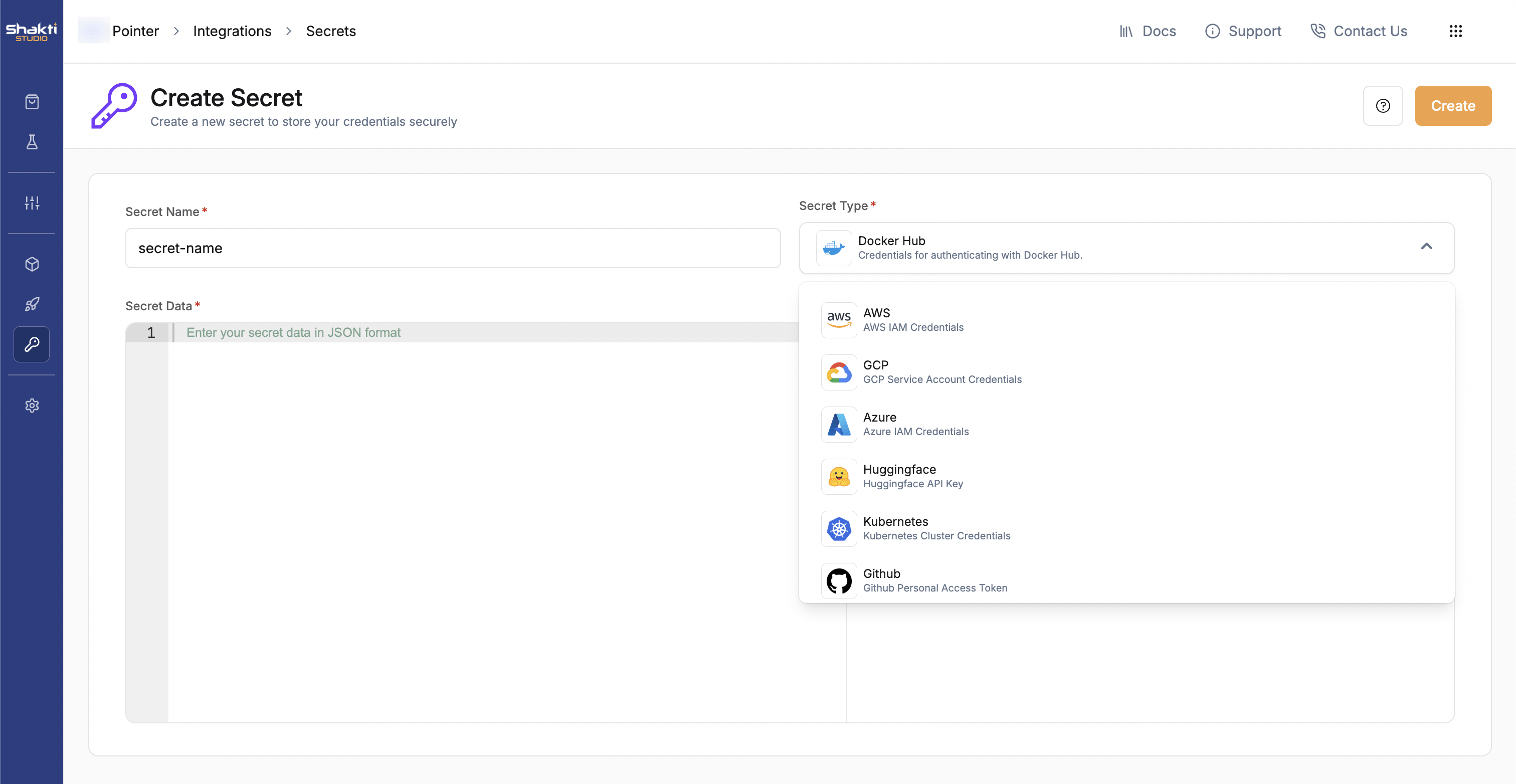 Paste the credentials in the specified JSON format into the provided text area. Refer to the sections below for the required structure for each secret type.
Click **Create** to securely store the secret.
Once created, the secret is available for use across your organization's integrations and deployments.
## Edit a Secret
Go to **Integrations → Secrets**.
Locate the secret you wish to modify from the list, then click the **Edit** button in the top-right corner.
Paste the credentials in the specified JSON format into the provided text area. Refer to the sections below for the required structure for each secret type.
Click **Create** to securely store the secret.
Once created, the secret is available for use across your organization's integrations and deployments.
## Edit a Secret
Go to **Integrations → Secrets**.
Locate the secret you wish to modify from the list, then click the **Edit** button in the top-right corner.
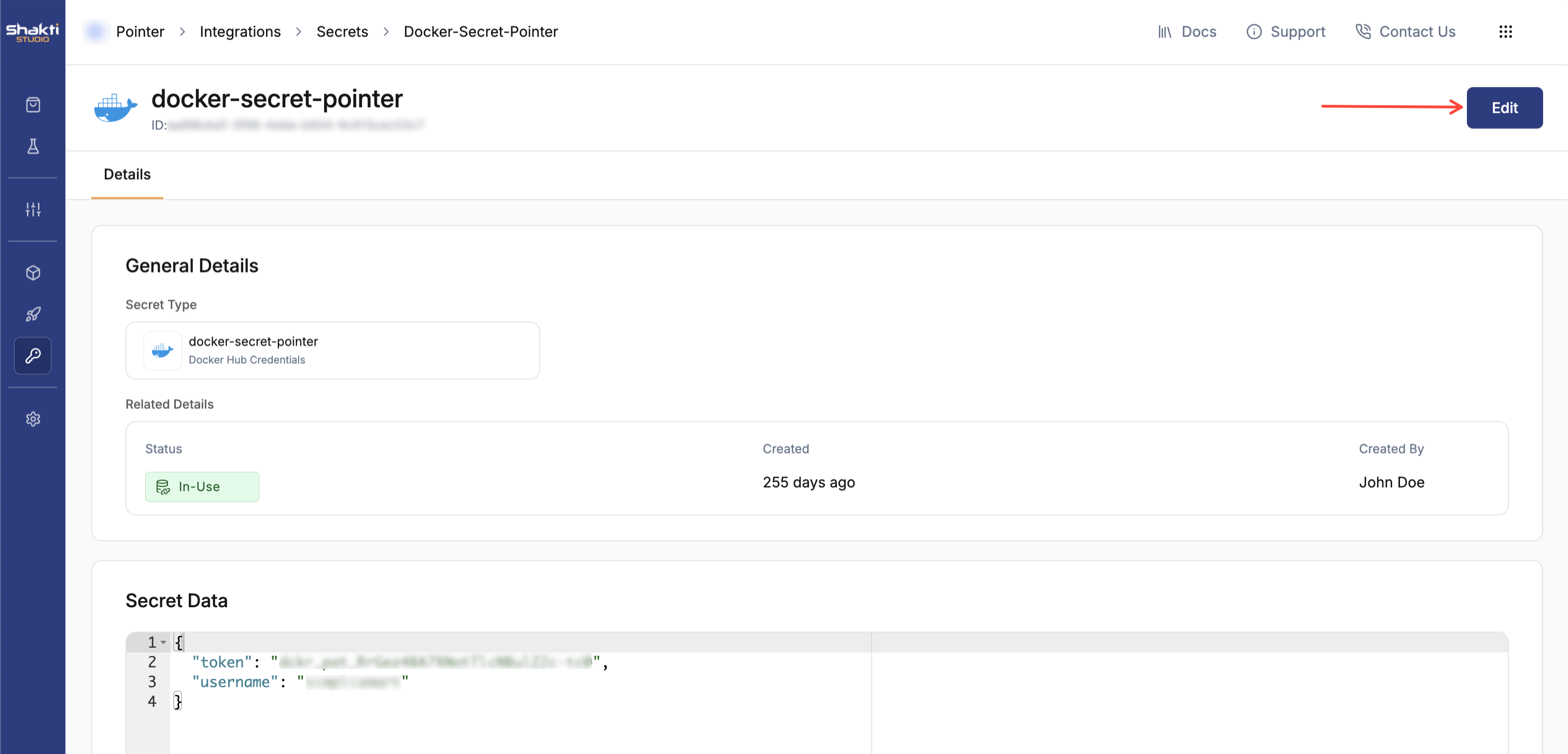 Adjust the credentials in the JSON format as needed.
Click **Save Changes** to update the secret.
***
## Cloud Credentials
Cloud credentials enable Shakti Studio to interact with your cloud infrastructure for tasks such as creating or importing Kubernetes clusters, managing storage resources, and deploying workloads.
The specific permissions required depend on the actions Shakti Studio will perform (e.g., cluster creation vs. ongoing maintenance). For initial setup, broader access simplifies configuration and can be refined to a more restrictive policy afterward.
**Best practices for cloud credentials**
Allocate a dedicated cloud account, project, or subscription specifically for Shakti Studio operations to isolate resources and permissions.
Grant only the minimum necessary permissions required for Shakti Studio to perform its functions.
Implement periodic rotation of access keys and API tokens to reduce the risk of compromise.
Never use personal or root account credentials. Always use service accounts or roles with specific, limited permissions.
AWS secrets allow Shakti Studio to create or manage EKS clusters and access storage resources.
#### Required credentials
* `access_key_id`
* `secret_access_key`
#### IAM policies
* **S3 Access**: Required for model storage, logs, and artifacts. Permissions: `s3:ListBucket`, `s3:GetObject`, `s3:PutObject`.
* **EKS Full Access (Create Cluster)**: Recommended policies: `AmazonEKSClusterPolicy`, `AmazonEKSServicePolicy`, or `AdministratorAccess` for initial setup.
* **EKS Maintenance Access (Import Cluster)**: Node group access, cluster read/write operations, networking updates.
#### Best practices
* Create a separate AWS sub-account for Shakti Studio.
* Avoid using root credentials.
* Use role-based access where possible.
```json AWS theme={null}
{
"access_key_id": "",
"secret_access_key": ""
}
```
GCP secrets allow Shakti Studio to manage GKE clusters and access storage.
#### Required credentials
Provide the JSON service account key for a dedicated service account.
#### IAM policies
* **GCS Access**: Required for model storage, logs, and artifacts. Recommended role: `Storage Object Admin`.
* **GKE Full Access (Create Cluster)**: Recommended roles: `Kubernetes Engine Admin`, `Compute Admin`.
* **GKE Maintenance Access (Import Cluster)**: Recommended roles: `Kubernetes Engine Developer`, cluster read/write permissions.
#### Best practices
* Create a separate GCP project for Shakti Studio.
* Use a dedicated service account.
* Avoid using personal credentials.
```json GCP theme={null}
{
"auth_provider_x509_cert_url": "",
"auth_uri": "",
"client_email": "",
"client_id": "",
"client_x509_cert_url": "",
"private_key": "",
"private_key_id": "",
"project_id": "",
"token_uri": "",
"type": "",
"universe_domain": ""
}
```
Azure secrets allow Shakti Studio to manage AKS clusters and storage resources.
#### Required credentials
* `tenant_id`
* `client_id`
* `client_secret`
* `subscription_id`
#### IAM policies
* **Azure Blob Storage Access**: Recommended role: `Storage Blob Data Contributor`.
* **AKS Full Access (Create Cluster)**: Recommended role: `Contributor` on the subscription or resource group.
* **AKS Maintenance Access (Import Cluster)**: Recommended role: `Contributor` on the cluster resource group.
#### Best practices
* Create a separate resource group for Shakti Studio.
* Use a dedicated service principal.
* Avoid using global subscription credentials.
```json Azure theme={null}
{
"client_id": "",
"client_secret": "",
"subscription_id": "",
"tenant_id": ""
}
```
***
## Container Registries
Container registry secrets enable Shakti Studio to pull private container images for your deployments and model serving.
Docker Hub secrets are used to pull private container images from Docker Hub repositories. Use a **Personal Access Token** instead of your account password.
#### Set up a personal access token
1. Log in to [Docker Hub](https://hub.docker.com).
2. Go to **Account Settings → Security**.
3. Create a new **Access Token** and copy it.
4. Add it as a secret in Shakti Studio.
#### Best practices
* Use read-only tokens where possible.
* Create a dedicated organization for Shakti Studio images.
```json Docker Hub theme={null}
{
"username": "",
"password": ""
}
```
Depot secrets enable pulling private containers stored in Depot registries.
#### Set up a personal access token
1. Log in to [Depot](https://depot.dev).
2. Generate a personal access token from your project settings.
3. Add the token as a secret in Shakti Studio.
#### Best practices
* Use a dedicated registry or repository for Shakti Studio.
* Restrict token scope to required repositories.
```json Depot theme={null}
{
"username": "x-token",
"token": ""
}
```
NVIDIA Docker secrets provide access to NVIDIA model containers and other resources on NVIDIA NGC (`nvcr.io`).
#### Set up an NGC API key
1. Log in to the [NVIDIA NGC portal](https://ngc.nvidia.com).
2. Generate an API key from your account settings.
3. Add it as a secret in Shakti Studio.
#### Best practices
* Use a dedicated account for Shakti Studio.
* Limit token scope to required images.
```json Nvidia Docker Secret theme={null}
{
"server": "nvcr.io",
"password": "",
"username": "$oauthtoken"
}
```
***
## Model Sources
Model source secrets allow Shakti Studio to access and download private or gated models from external platforms.
Hugging Face secrets enable the download of private or gated models from the Hugging Face Hub.
#### Set up an access token
1. Log in to [Hugging Face](https://huggingface.co).
2. Go to **Settings → Access Tokens**.
3. Create a new token with at least **Read** access.
4. Copy the token and add it as a secret in Shakti Studio.
#### Best practices
* Use tokens with **read-only access**.
* Grant access only to the repositories you need.
```json Hugging Face theme={null}
{
"token": ""
}
```
GitHub secrets allow Shakti Studio to access models or containers stored in private GitHub repositories or GitHub Container Registry (GHCR).
#### Set up a personal access token
1. Log in to [GitHub](https://github.com).
2. Go to **Settings → Developer settings → Personal access tokens**.
3. Generate a new token with the required repository or package read permissions.
4. Copy the token and add it as a secret in Shakti Studio.
#### Best practices
* Use fine-grained tokens scoped to only the repositories you need.
* Grant read-only access.
```json GitHub theme={null}
{
"token": ""
}
```
***
## Kubernetes Cluster Credentials
Kubernetes cluster credentials store the authentication details needed to connect Shakti Studio to an existing Kubernetes cluster. These are used when importing clusters or deploying workloads to an imported cluster.
Token-based and certificate-based authentication cannot be used together. Choose only one method.
**Best practices**
* Use a dedicated cluster for Shakti Studio workloads.
* Avoid sharing clusters with unrelated production systems.
Authenticate using a service account token:
```json Kubernetes — Token theme={null}
{
"token": "",
"server": "",
"ca_certificate": ""
}
```
Authenticate using client certificates:
```json Kubernetes — Certificate theme={null}
{
"server": "",
"client_key": "",
"ca_certificate": "",
"client_certificate": ""
}
```
***
## Shakti Cloud S3
Shakti Cloud S3 secrets allow Shakti Studio to access storage hosted on the Shakti Cloud S3-compatible object store.
Reach out to the Shakti Cloud team to obtain credentials for Shakti Cloud S3.
```json Shakti Cloud S3 theme={null}
{
"endpoint_url": "",
"access_key_id": "",
"secret_access_key": ""
}
```
***
## Generic Secrets
Generic secrets provide a flexible way to securely store any custom credentials or sensitive information not covered by the specific secret types above. These can include third-party API keys, custom authentication tokens, or other environment variables.
1. Go to **Integrations → Secrets**.
2. Click **Create Secret**.
3. Select **Generic** as the secret type.
4. Enter key-value pairs in the required JSON format.
5. Click **Create** to save.
```json Generic theme={null}
{
"KEY_NAME": "VALUE"
}
```
Adjust the credentials in the JSON format as needed.
Click **Save Changes** to update the secret.
***
## Cloud Credentials
Cloud credentials enable Shakti Studio to interact with your cloud infrastructure for tasks such as creating or importing Kubernetes clusters, managing storage resources, and deploying workloads.
The specific permissions required depend on the actions Shakti Studio will perform (e.g., cluster creation vs. ongoing maintenance). For initial setup, broader access simplifies configuration and can be refined to a more restrictive policy afterward.
**Best practices for cloud credentials**
Allocate a dedicated cloud account, project, or subscription specifically for Shakti Studio operations to isolate resources and permissions.
Grant only the minimum necessary permissions required for Shakti Studio to perform its functions.
Implement periodic rotation of access keys and API tokens to reduce the risk of compromise.
Never use personal or root account credentials. Always use service accounts or roles with specific, limited permissions.
AWS secrets allow Shakti Studio to create or manage EKS clusters and access storage resources.
#### Required credentials
* `access_key_id`
* `secret_access_key`
#### IAM policies
* **S3 Access**: Required for model storage, logs, and artifacts. Permissions: `s3:ListBucket`, `s3:GetObject`, `s3:PutObject`.
* **EKS Full Access (Create Cluster)**: Recommended policies: `AmazonEKSClusterPolicy`, `AmazonEKSServicePolicy`, or `AdministratorAccess` for initial setup.
* **EKS Maintenance Access (Import Cluster)**: Node group access, cluster read/write operations, networking updates.
#### Best practices
* Create a separate AWS sub-account for Shakti Studio.
* Avoid using root credentials.
* Use role-based access where possible.
```json AWS theme={null}
{
"access_key_id": "",
"secret_access_key": ""
}
```
GCP secrets allow Shakti Studio to manage GKE clusters and access storage.
#### Required credentials
Provide the JSON service account key for a dedicated service account.
#### IAM policies
* **GCS Access**: Required for model storage, logs, and artifacts. Recommended role: `Storage Object Admin`.
* **GKE Full Access (Create Cluster)**: Recommended roles: `Kubernetes Engine Admin`, `Compute Admin`.
* **GKE Maintenance Access (Import Cluster)**: Recommended roles: `Kubernetes Engine Developer`, cluster read/write permissions.
#### Best practices
* Create a separate GCP project for Shakti Studio.
* Use a dedicated service account.
* Avoid using personal credentials.
```json GCP theme={null}
{
"auth_provider_x509_cert_url": "",
"auth_uri": "",
"client_email": "",
"client_id": "",
"client_x509_cert_url": "",
"private_key": "",
"private_key_id": "",
"project_id": "",
"token_uri": "",
"type": "",
"universe_domain": ""
}
```
Azure secrets allow Shakti Studio to manage AKS clusters and storage resources.
#### Required credentials
* `tenant_id`
* `client_id`
* `client_secret`
* `subscription_id`
#### IAM policies
* **Azure Blob Storage Access**: Recommended role: `Storage Blob Data Contributor`.
* **AKS Full Access (Create Cluster)**: Recommended role: `Contributor` on the subscription or resource group.
* **AKS Maintenance Access (Import Cluster)**: Recommended role: `Contributor` on the cluster resource group.
#### Best practices
* Create a separate resource group for Shakti Studio.
* Use a dedicated service principal.
* Avoid using global subscription credentials.
```json Azure theme={null}
{
"client_id": "",
"client_secret": "",
"subscription_id": "",
"tenant_id": ""
}
```
***
## Container Registries
Container registry secrets enable Shakti Studio to pull private container images for your deployments and model serving.
Docker Hub secrets are used to pull private container images from Docker Hub repositories. Use a **Personal Access Token** instead of your account password.
#### Set up a personal access token
1. Log in to [Docker Hub](https://hub.docker.com).
2. Go to **Account Settings → Security**.
3. Create a new **Access Token** and copy it.
4. Add it as a secret in Shakti Studio.
#### Best practices
* Use read-only tokens where possible.
* Create a dedicated organization for Shakti Studio images.
```json Docker Hub theme={null}
{
"username": "",
"password": ""
}
```
Depot secrets enable pulling private containers stored in Depot registries.
#### Set up a personal access token
1. Log in to [Depot](https://depot.dev).
2. Generate a personal access token from your project settings.
3. Add the token as a secret in Shakti Studio.
#### Best practices
* Use a dedicated registry or repository for Shakti Studio.
* Restrict token scope to required repositories.
```json Depot theme={null}
{
"username": "x-token",
"token": ""
}
```
NVIDIA Docker secrets provide access to NVIDIA model containers and other resources on NVIDIA NGC (`nvcr.io`).
#### Set up an NGC API key
1. Log in to the [NVIDIA NGC portal](https://ngc.nvidia.com).
2. Generate an API key from your account settings.
3. Add it as a secret in Shakti Studio.
#### Best practices
* Use a dedicated account for Shakti Studio.
* Limit token scope to required images.
```json Nvidia Docker Secret theme={null}
{
"server": "nvcr.io",
"password": "",
"username": "$oauthtoken"
}
```
***
## Model Sources
Model source secrets allow Shakti Studio to access and download private or gated models from external platforms.
Hugging Face secrets enable the download of private or gated models from the Hugging Face Hub.
#### Set up an access token
1. Log in to [Hugging Face](https://huggingface.co).
2. Go to **Settings → Access Tokens**.
3. Create a new token with at least **Read** access.
4. Copy the token and add it as a secret in Shakti Studio.
#### Best practices
* Use tokens with **read-only access**.
* Grant access only to the repositories you need.
```json Hugging Face theme={null}
{
"token": ""
}
```
GitHub secrets allow Shakti Studio to access models or containers stored in private GitHub repositories or GitHub Container Registry (GHCR).
#### Set up a personal access token
1. Log in to [GitHub](https://github.com).
2. Go to **Settings → Developer settings → Personal access tokens**.
3. Generate a new token with the required repository or package read permissions.
4. Copy the token and add it as a secret in Shakti Studio.
#### Best practices
* Use fine-grained tokens scoped to only the repositories you need.
* Grant read-only access.
```json GitHub theme={null}
{
"token": ""
}
```
***
## Kubernetes Cluster Credentials
Kubernetes cluster credentials store the authentication details needed to connect Shakti Studio to an existing Kubernetes cluster. These are used when importing clusters or deploying workloads to an imported cluster.
Token-based and certificate-based authentication cannot be used together. Choose only one method.
**Best practices**
* Use a dedicated cluster for Shakti Studio workloads.
* Avoid sharing clusters with unrelated production systems.
Authenticate using a service account token:
```json Kubernetes — Token theme={null}
{
"token": "",
"server": "",
"ca_certificate": ""
}
```
Authenticate using client certificates:
```json Kubernetes — Certificate theme={null}
{
"server": "",
"client_key": "",
"ca_certificate": "",
"client_certificate": ""
}
```
***
## Shakti Cloud S3
Shakti Cloud S3 secrets allow Shakti Studio to access storage hosted on the Shakti Cloud S3-compatible object store.
Reach out to the Shakti Cloud team to obtain credentials for Shakti Cloud S3.
```json Shakti Cloud S3 theme={null}
{
"endpoint_url": "",
"access_key_id": "",
"secret_access_key": ""
}
```
***
## Generic Secrets
Generic secrets provide a flexible way to securely store any custom credentials or sensitive information not covered by the specific secret types above. These can include third-party API keys, custom authentication tokens, or other environment variables.
1. Go to **Integrations → Secrets**.
2. Click **Create Secret**.
3. Select **Generic** as the secret type.
4. Enter key-value pairs in the required JSON format.
5. Click **Create** to save.
```json Generic theme={null}
{
"KEY_NAME": "VALUE"
}
```