> ## Documentation Index
> Fetch the complete documentation index at: https://docs.shaktistudio.ai/llms.txt
> Use this file to discover all available pages before exploring further.
# Create Organization Profile Contact
## Overview
This guide walks you through the process of creating a new organisation profile contact and enabling them as a portal user within **Shakti Studio**.
***
### 1. Login into Shakti Studio
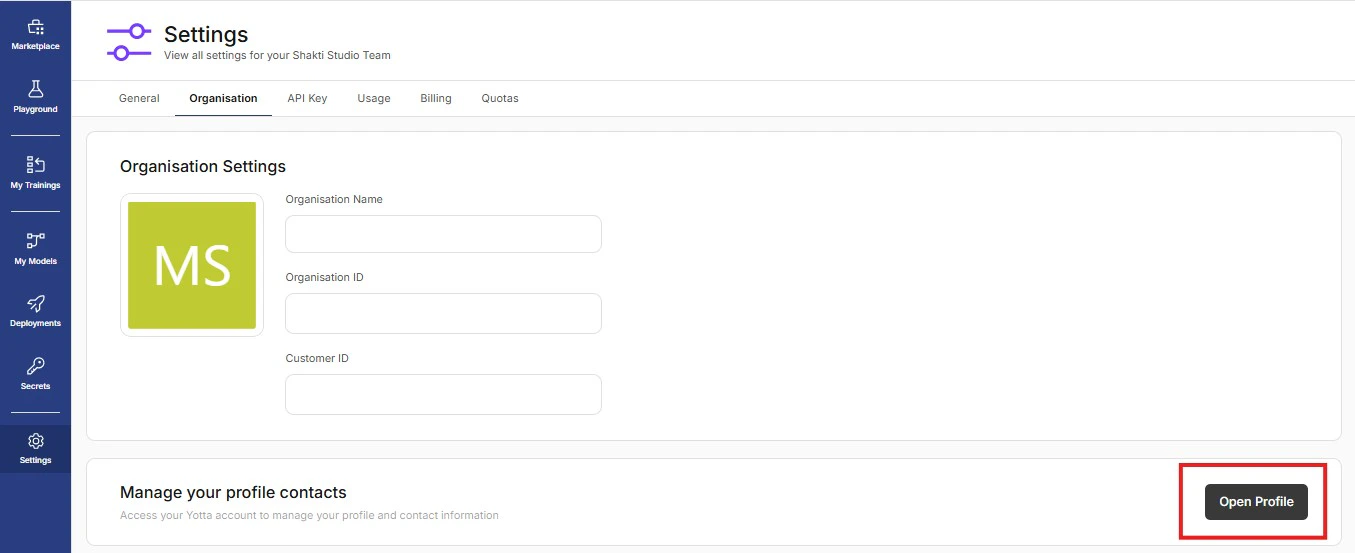
* Navigate to **Settings → Organisation**
* Scroll down to **Manage your profile’s contact**
* Click on **Open Profile**
##  ### 2. Open Contact Section
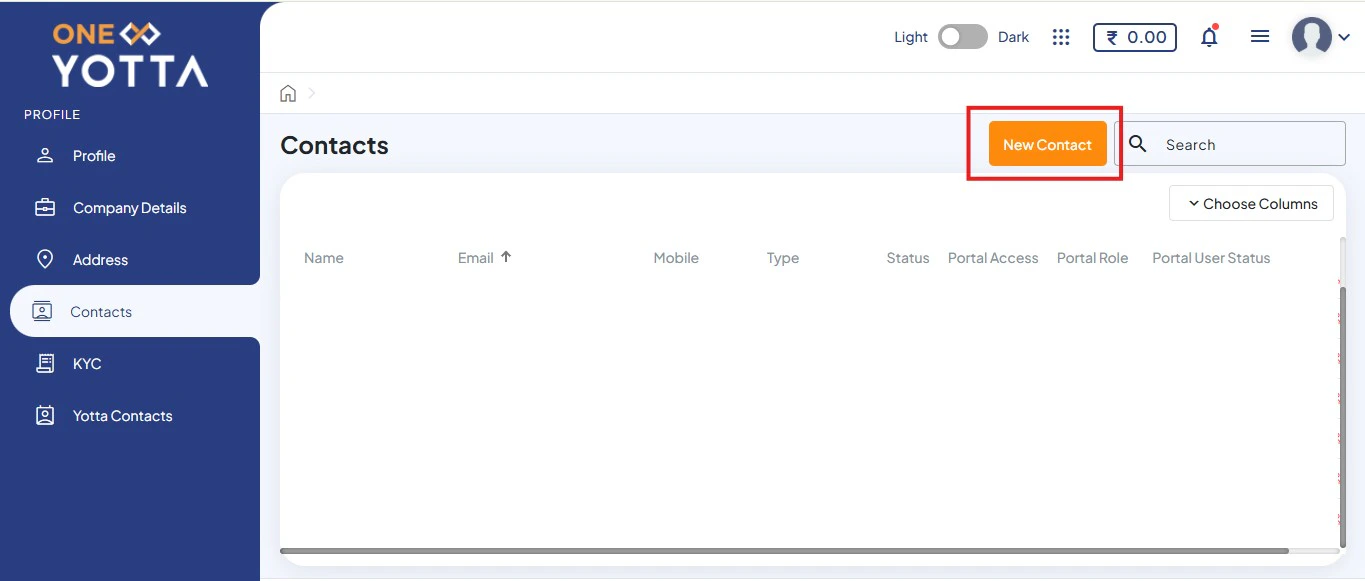
* Once redirected, the **One Yotta portal** will open
* Navigate to the **Contact** section
* Click on **New Contact**
### 2. Open Contact Section
* Once redirected, the **One Yotta portal** will open
* Navigate to the **Contact** section
* Click on **New Contact**
 ***
### 3. Add Contact Details
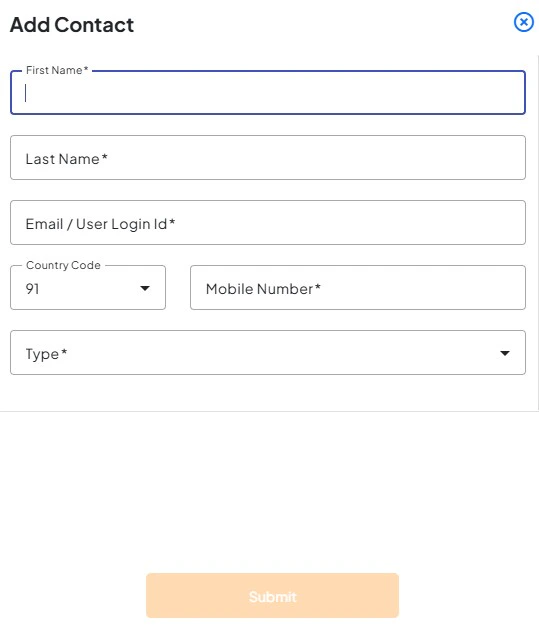
* Enter the required contact details
* Click on **Submit**
After submission:
* The newly added contact email ID will receive an onboarding email from `noreply@yotta.com`
* Complete **OTP verification** and **credential setup**
* Use the same credentials to log in to **Shakti Studio**
***
### 3. Add Contact Details
* Enter the required contact details
* Click on **Submit**
After submission:
* The newly added contact email ID will receive an onboarding email from `noreply@yotta.com`
* Complete **OTP verification** and **credential setup**
* Use the same credentials to log in to **Shakti Studio**
 ***
### 4. Verify Contact Creation
* After submission, the new contact will appear in the contact list
***
### 5. Enable as Portal User
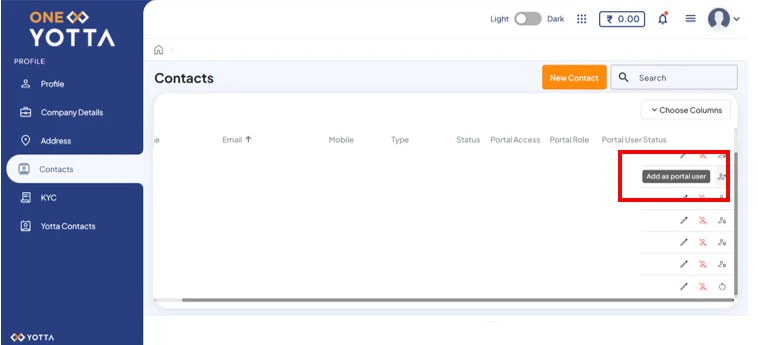
* Scroll to the extreme right of the contact row
* Click on the **Add as a portal user** icon
* Select the desired portal user option
***
### 4. Verify Contact Creation
* After submission, the new contact will appear in the contact list
***
### 5. Enable as Portal User
* Scroll to the extreme right of the contact row
* Click on the **Add as a portal user** icon
* Select the desired portal user option
 ***
## After completing these steps:
* A new organization contact is created
* The contact is successfully enabled as a portal user
* Ensure correct details are entered while creating the contact\\
* Portal user access can be modified later if required
***
***
## After completing these steps:
* A new organization contact is created
* The contact is successfully enabled as a portal user
* Ensure correct details are entered while creating the contact\\
* Portal user access can be modified later if required
***