> ## Documentation Index
> Fetch the complete documentation index at: https://docs.shaktistudio.ai/llms.txt
> Use this file to discover all available pages before exploring further.
# Workspaces
> Scope models and deployments within your organisation using Workspaces
Workspaces let you partition models and deployments within an organisation. Each workspace acts as an isolated scope, models compiled or deployed inside one workspace are not visible to members of another.
Navigate to **Settings → Workspaces** to manage your workspaces.
***
## **Overview**
Every organisation starts with a **Default** workspace. All organisation members are automatically added to it.
You can create additional workspaces to isolate environments. For example, separating production deployments from experimentation, or giving different teams their own scope.
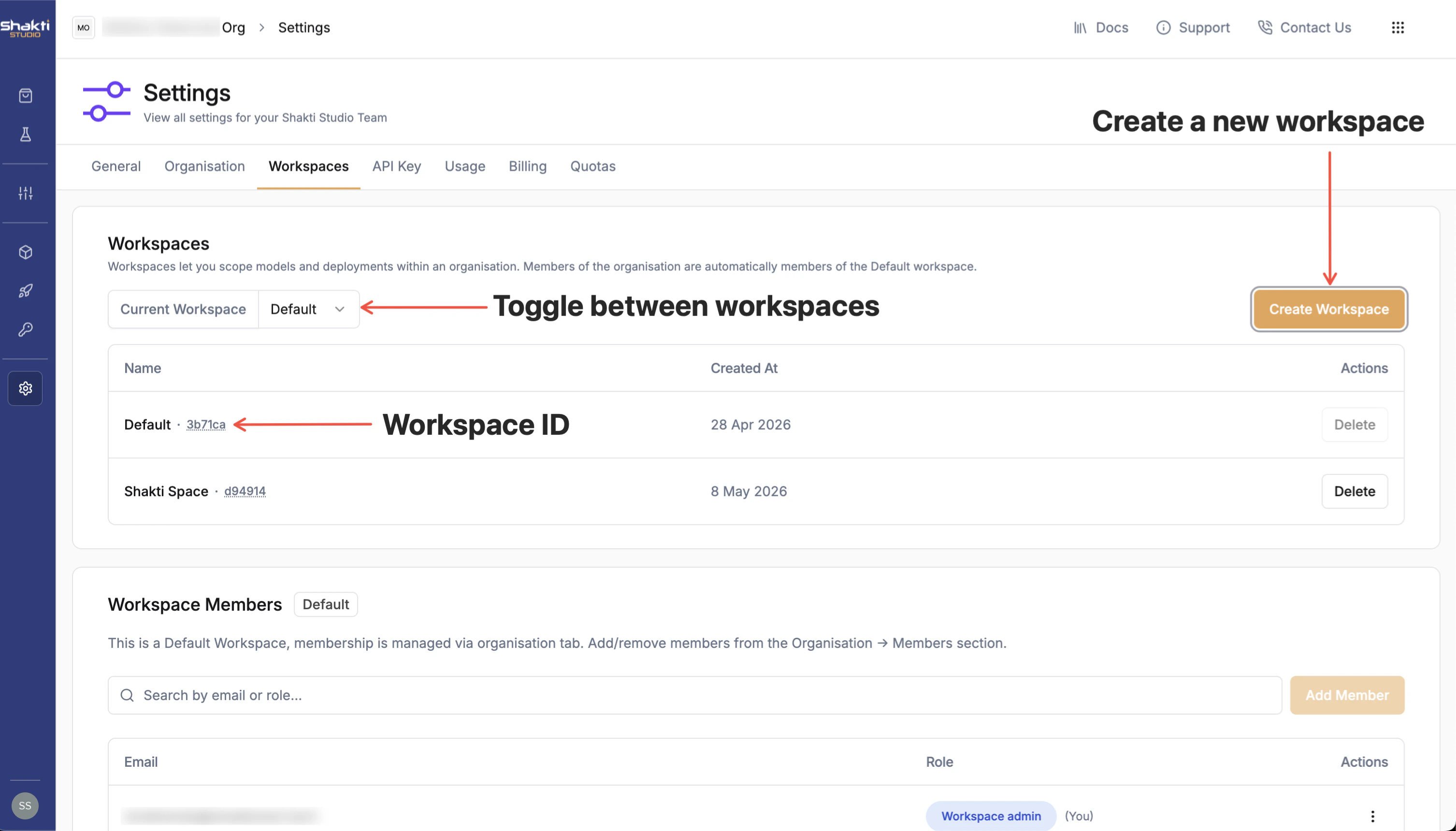 The **Current Workspace** dropdown at the top of the page lets you switch between workspaces. Each workspace displays its name and a unique **Workspace ID**.
***
## **Creating a Workspace**
Only **organisation admins** can create workspaces.
1. Navigate to **Settings → Workspaces**
2. Click the **Create Workspace** button in the top-right corner
3. Enter a name for the new workspace
4. Click **Create** to confirm
The workspace creator is automatically added as a **Workspace Admin**.
***
## **Workspace Roles**
There are two roles within a workspace:
| Role | What they can do |
| -------------------- | ------------------------------------------------------------------------------------------------------ |
| **Workspace Admin** | Add, remove, and update workspace members. Full access to all models and deployments in the workspace. |
| **Workspace Member** | View and use models and deployments scoped to the workspace. Cannot manage membership. |
Organisation admins have implicit access to **all workspaces** in the organisation, regardless of whether they are explicitly added as a workspace member.
***
## **Managing Members**
### Default Workspace
The Default workspace cannot be deleted and its membership is managed entirely by organisation membership, it automatically mirrors your org member list.
You **cannot** add or remove members from the Default workspace in the Workspaces tab. To manage membership, go to **Organisation → Members**.
* When a user is **added to the organisation**, they are automatically added to the Default workspace. Their workspace role reflects their org role: org admins get **Workspace Admin**, other members get **Workspace Member**.
* When a user is **removed from the organisation**, they are removed from the Default workspace **and all other workspaces** in the organisation.
Membership changes in the Default workspace are made through **Organisation → Members**, not the Workspaces tab. Removing a user from the organisation also removes them from every workspace in the organisation.
### Created Workspaces
For workspaces you create, membership is managed independently from the organisation.
Only users who are already members of the organisation can be added to a workspace. Adding a workspace member requires **Workspace Admin** or **Organisation Admin** access.
1. Use the **Current Workspace** dropdown to switch to the target workspace
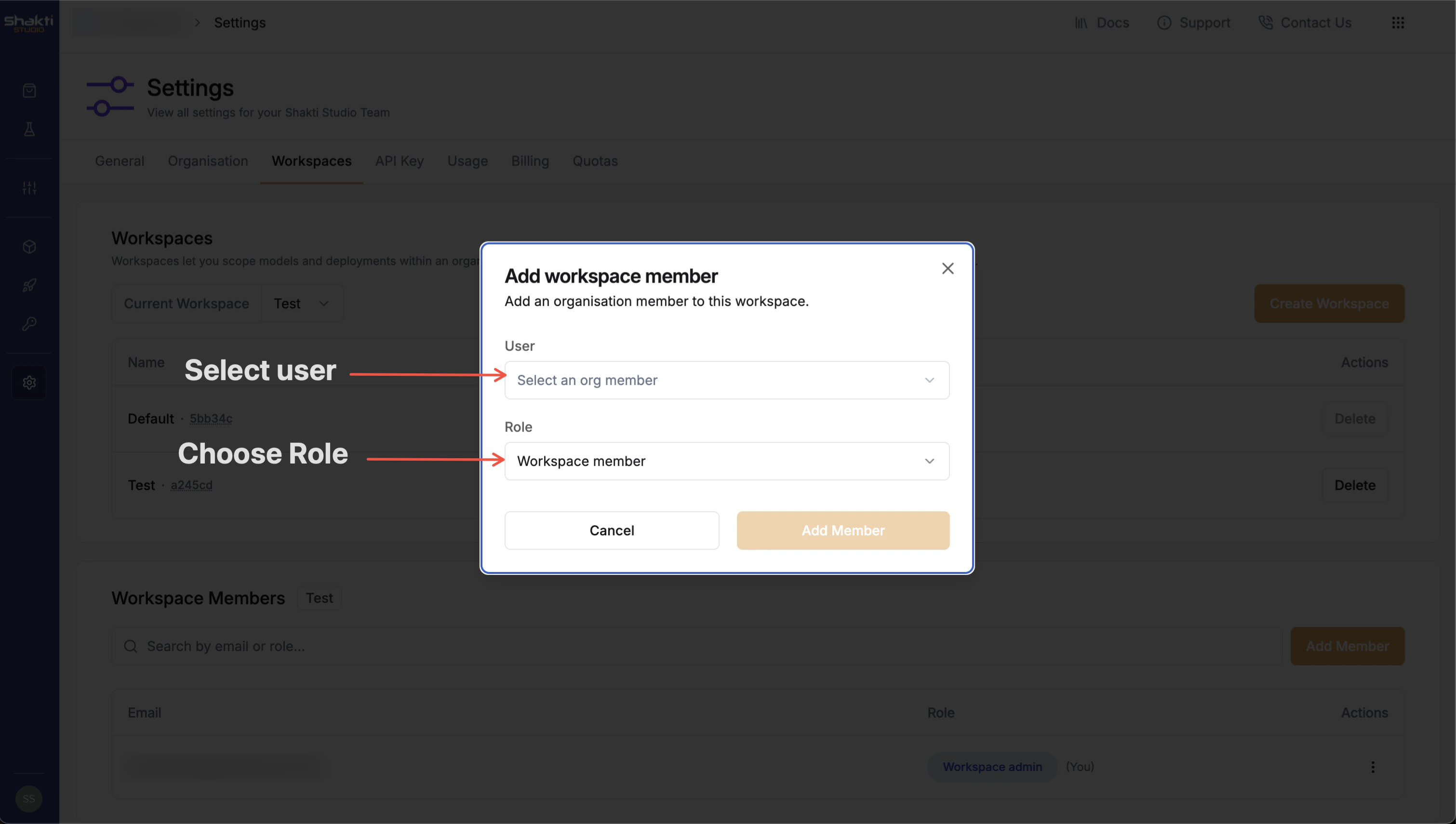
2. In the **Workspace Members** section, click **Add Member**
The **Current Workspace** dropdown at the top of the page lets you switch between workspaces. Each workspace displays its name and a unique **Workspace ID**.
***
## **Creating a Workspace**
Only **organisation admins** can create workspaces.
1. Navigate to **Settings → Workspaces**
2. Click the **Create Workspace** button in the top-right corner
3. Enter a name for the new workspace
4. Click **Create** to confirm
The workspace creator is automatically added as a **Workspace Admin**.
***
## **Workspace Roles**
There are two roles within a workspace:
| Role | What they can do |
| -------------------- | ------------------------------------------------------------------------------------------------------ |
| **Workspace Admin** | Add, remove, and update workspace members. Full access to all models and deployments in the workspace. |
| **Workspace Member** | View and use models and deployments scoped to the workspace. Cannot manage membership. |
Organisation admins have implicit access to **all workspaces** in the organisation, regardless of whether they are explicitly added as a workspace member.
***
## **Managing Members**
### Default Workspace
The Default workspace cannot be deleted and its membership is managed entirely by organisation membership, it automatically mirrors your org member list.
You **cannot** add or remove members from the Default workspace in the Workspaces tab. To manage membership, go to **Organisation → Members**.
* When a user is **added to the organisation**, they are automatically added to the Default workspace. Their workspace role reflects their org role: org admins get **Workspace Admin**, other members get **Workspace Member**.
* When a user is **removed from the organisation**, they are removed from the Default workspace **and all other workspaces** in the organisation.
Membership changes in the Default workspace are made through **Organisation → Members**, not the Workspaces tab. Removing a user from the organisation also removes them from every workspace in the organisation.
### Created Workspaces
For workspaces you create, membership is managed independently from the organisation.
Only users who are already members of the organisation can be added to a workspace. Adding a workspace member requires **Workspace Admin** or **Organisation Admin** access.
1. Use the **Current Workspace** dropdown to switch to the target workspace
2. In the **Workspace Members** section, click **Add Member**
 3. Search by email or role to find the user
4. Select the role (**Workspace Admin** or **Workspace Member**) and confirm
3. Search by email or role to find the user
4. Select the role (**Workspace Admin** or **Workspace Member**) and confirm
 Each workspace must have at least one **Workspace Admin** at all times. You cannot remove or demote the last workspace admin.
***
## **Permissions and Visibility**
Workspace isolation applies to both reads and writes. You only see models and deployments that belong to workspaces you are a member of, resources in other workspaces are not visible, even within the same organisation.
This applies throughout the platform:
* The **Models** list only shows models in your accessible workspaces
* The **Deployments** list only shows deployments in your accessible workspaces
* **Filter options** (such as created by, deployment tags) are also scoped, values from inaccessible workspaces do not appear in filter dropdowns
Organisation admins can see all workspaces and all resources across the organisation, regardless of workspace membership.
***
## **Moving Resources Between Workspaces**
Models and deployments can be moved from one workspace to another within the same organisation.
Only **Workspace Admins** of the source workspace and **Organisation Admins** can move resources. Workspace Members cannot.
### Moving a Model
1. Open the model you want to move
2. Select **Move to Workspace** from the actions menu
Each workspace must have at least one **Workspace Admin** at all times. You cannot remove or demote the last workspace admin.
***
## **Permissions and Visibility**
Workspace isolation applies to both reads and writes. You only see models and deployments that belong to workspaces you are a member of, resources in other workspaces are not visible, even within the same organisation.
This applies throughout the platform:
* The **Models** list only shows models in your accessible workspaces
* The **Deployments** list only shows deployments in your accessible workspaces
* **Filter options** (such as created by, deployment tags) are also scoped, values from inaccessible workspaces do not appear in filter dropdowns
Organisation admins can see all workspaces and all resources across the organisation, regardless of workspace membership.
***
## **Moving Resources Between Workspaces**
Models and deployments can be moved from one workspace to another within the same organisation.
Only **Workspace Admins** of the source workspace and **Organisation Admins** can move resources. Workspace Members cannot.
### Moving a Model
1. Open the model you want to move
2. Select **Move to Workspace** from the actions menu
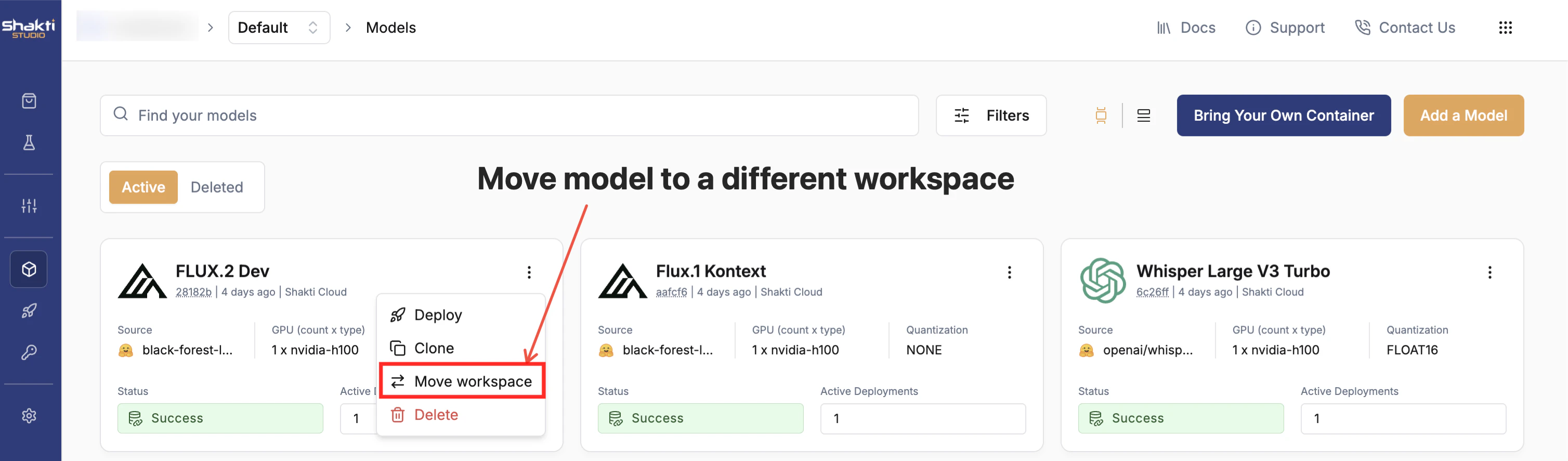 3. Choose the target workspace and confirm
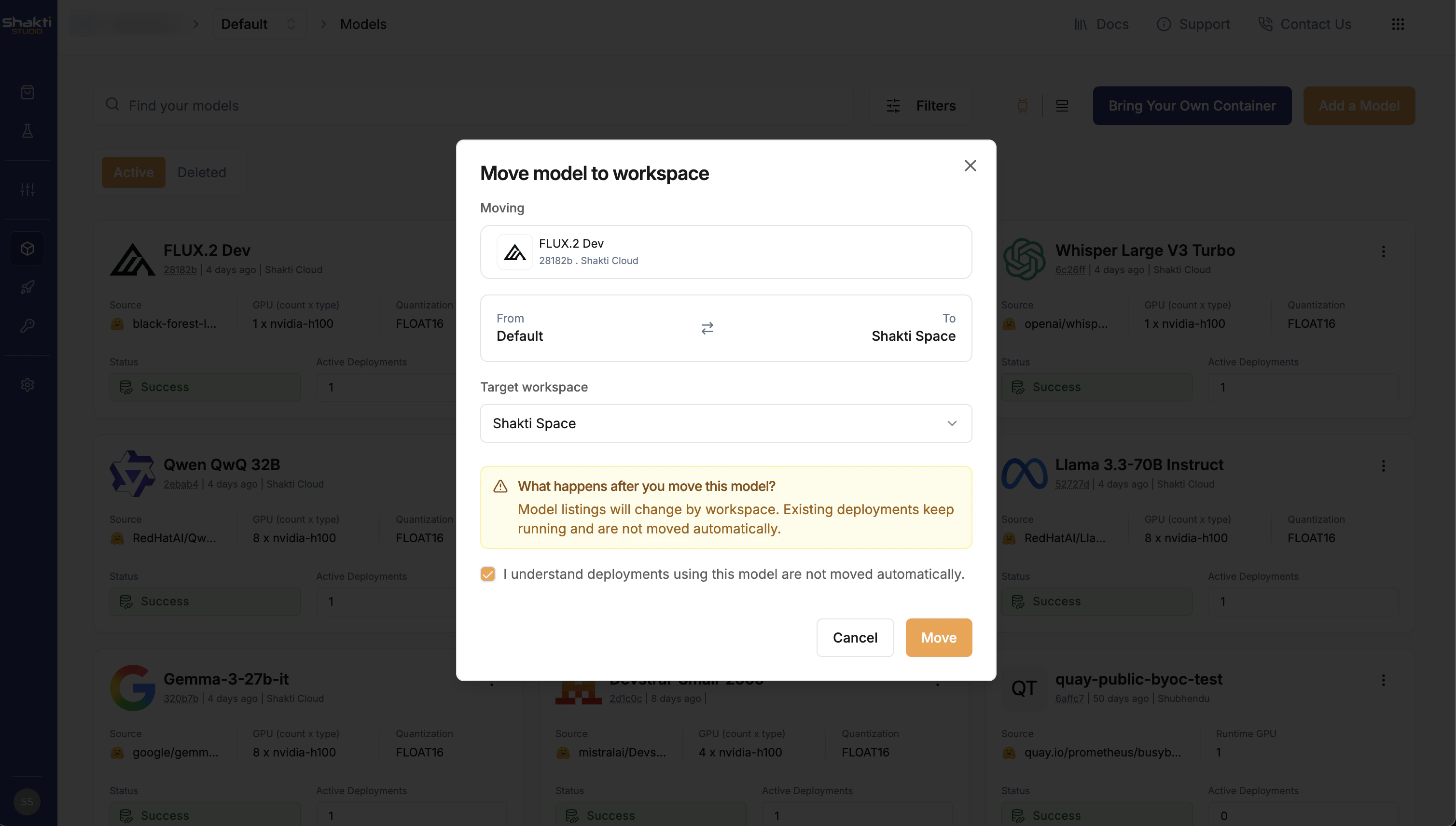 **Constraints:**
* The target workspace must be in the same organisation
* A model cannot be moved to the workspace it already belongs to
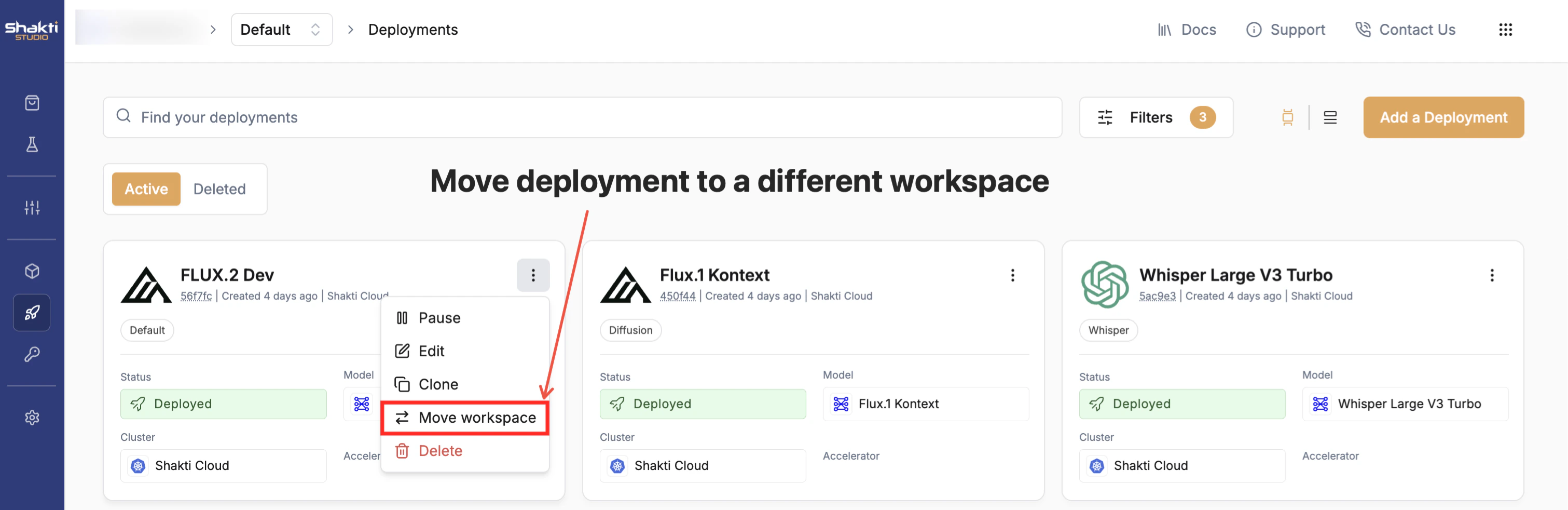
### Moving a Deployment
1. Open the deployment you want to move
2. Select **Move to Workspace** from the actions menu
**Constraints:**
* The target workspace must be in the same organisation
* A model cannot be moved to the workspace it already belongs to
### Moving a Deployment
1. Open the deployment you want to move
2. Select **Move to Workspace** from the actions menu
 3. Choose the target workspace and confirm
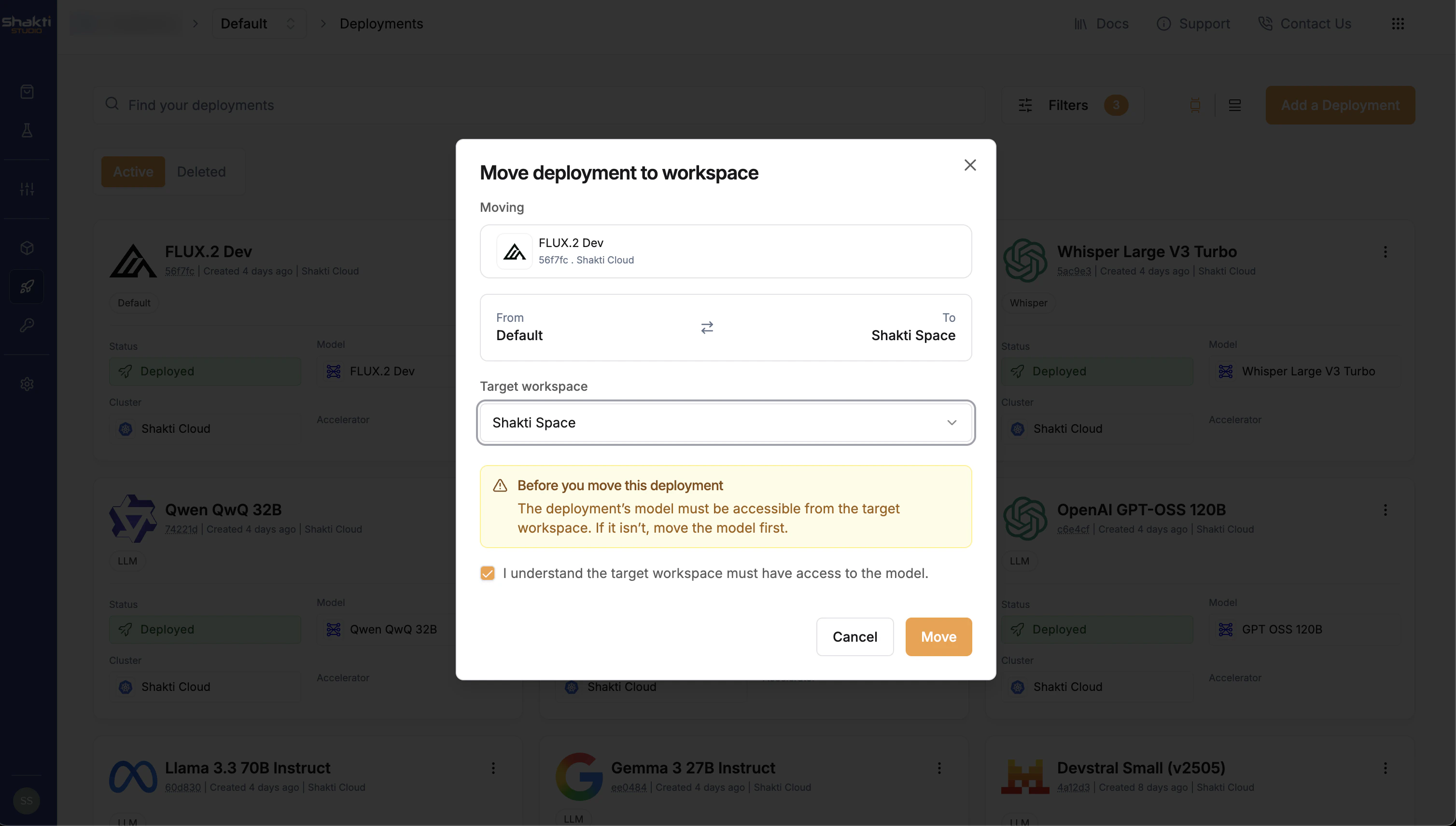 **Constraints:**
* The model used by the deployment must already exist in the target workspace. If it does not, move the model first, then move the deployment.
* The target workspace must be in the same organisation
* A deployment cannot be moved to the workspace it already belongs to
If the underlying model is a shared marketplace model (public and deployable), the workspace match requirement is waived and the deployment can be moved freely.
## **Deleting a Workspace**
Only **organisation admins** can delete workspaces. The Default workspace cannot be deleted.
A workspace can only be deleted when it contains no active models or deployments. If the workspace has active resources, the platform will return an error indicating the count of models and deployments that need to be removed first.
To delete a workspace:
1. Ensure all active models and deployments within the workspace are deleted
2. Navigate to **Settings → Workspaces**
3. Click **Delete** next to the workspace you want to remove
4. Confirm the deletion
***
**Constraints:**
* The model used by the deployment must already exist in the target workspace. If it does not, move the model first, then move the deployment.
* The target workspace must be in the same organisation
* A deployment cannot be moved to the workspace it already belongs to
If the underlying model is a shared marketplace model (public and deployable), the workspace match requirement is waived and the deployment can be moved freely.
## **Deleting a Workspace**
Only **organisation admins** can delete workspaces. The Default workspace cannot be deleted.
A workspace can only be deleted when it contains no active models or deployments. If the workspace has active resources, the platform will return an error indicating the count of models and deployments that need to be removed first.
To delete a workspace:
1. Ensure all active models and deployments within the workspace are deleted
2. Navigate to **Settings → Workspaces**
3. Click **Delete** next to the workspace you want to remove
4. Confirm the deletion
***