

- Access keys
- API tokens
- Service account credentials
- Cluster authentication details
Why secrets are used
Secrets are required to:- Access cloud infrastructure for cluster creation or import
- Pull containers from private registries
- Download models from external sources
- Authenticate with Kubernetes clusters
Add a Secret
1
Navigate to Secrets Management
Go to Integrations → Secrets in the Shakti Studio UI.
2
Initiate Secret Creation
Click the Create Secret button to open the secret creation form.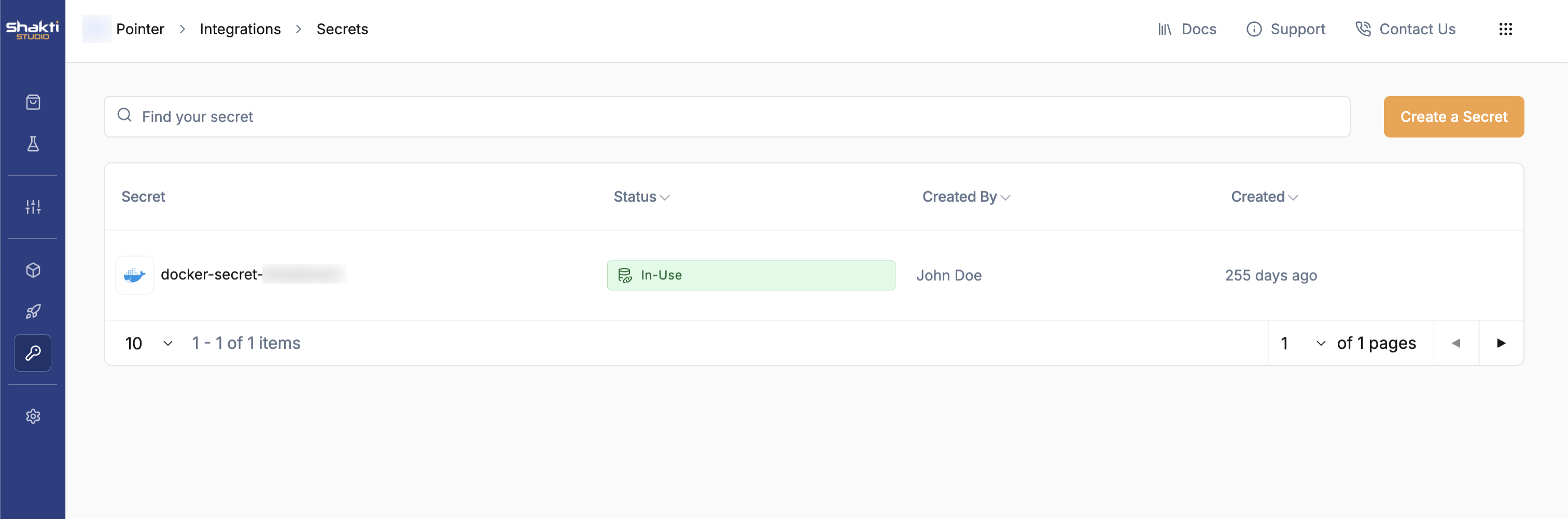
3
Define Secret Details
Enter a descriptive secret name and choose the appropriate secret type from the dropdown menu (e.g., 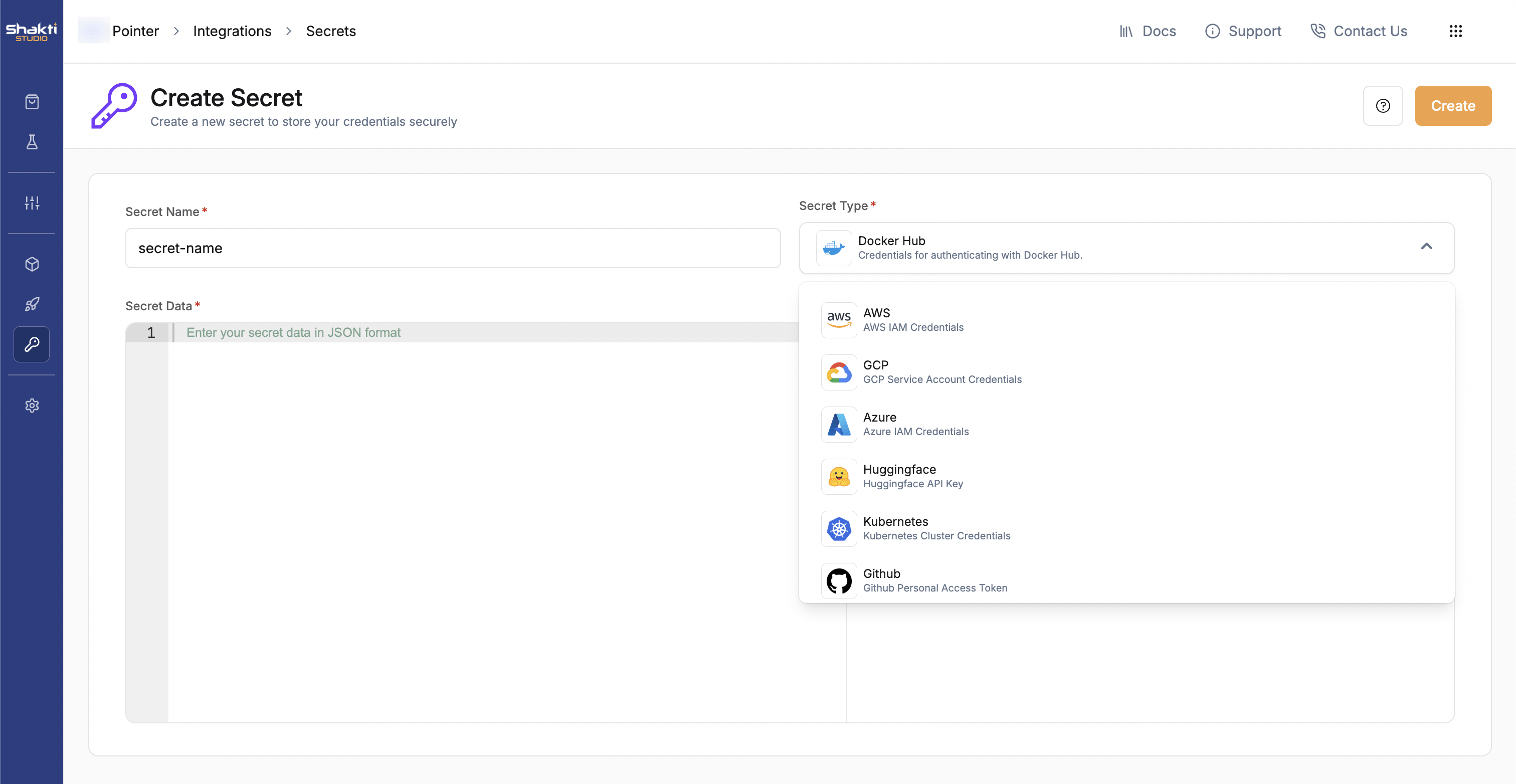
AWS, GCP, Azure, Docker Hub, Hugging Face, Kubernetes, Generic).4
Input Credentials
Paste the credentials in the specified JSON format into the provided text area. Refer to the sections below for the required structure for each secret type.
5
Save the Secret
Click Create to securely store the secret.
Edit a Secret
1
Navigate to Secrets Management
Go to Integrations → Secrets.
2
Select and Edit
Locate the secret you wish to modify from the list, then click the Edit button in the top-right corner.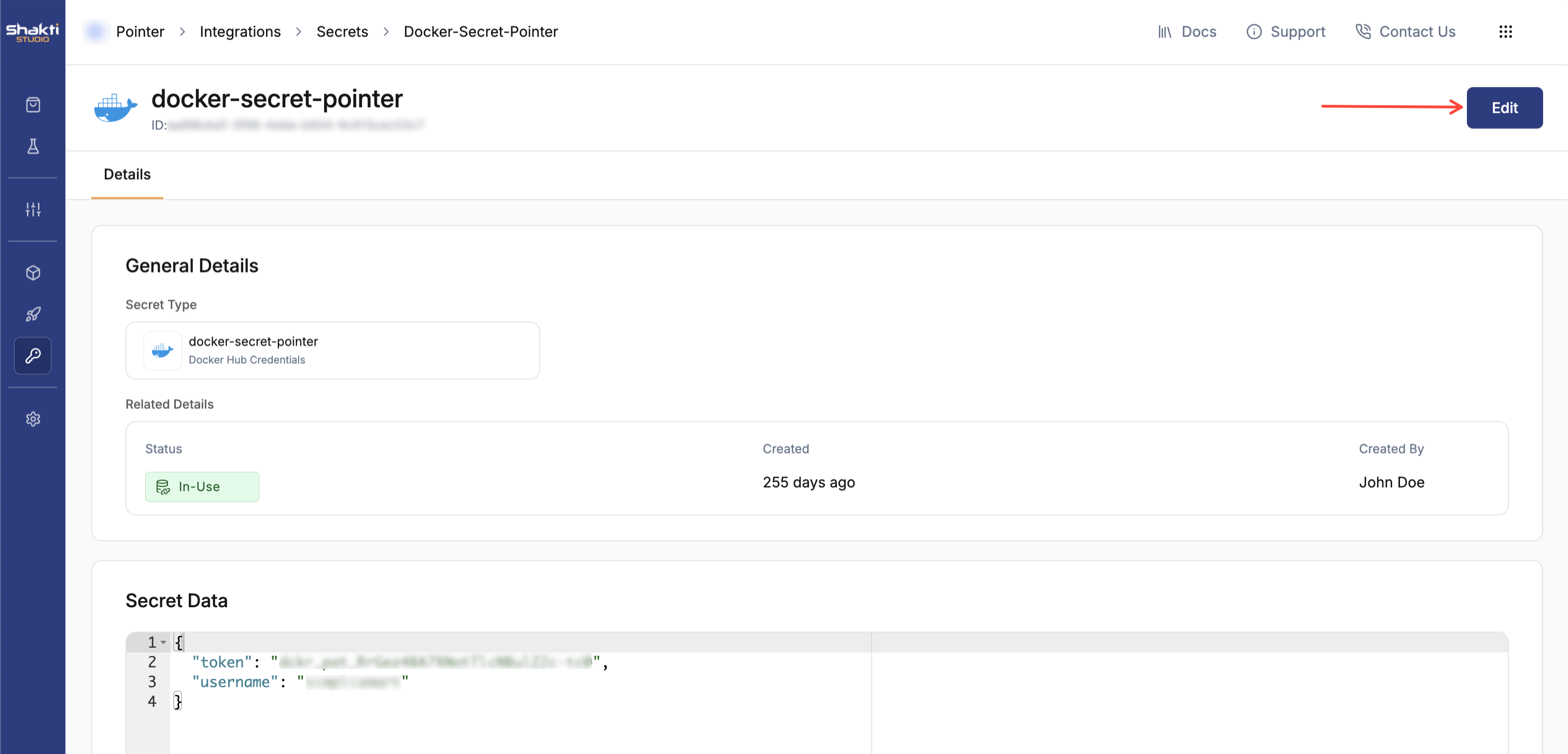
3
Update Credentials
Adjust the credentials in the JSON format as needed.
4
Save Changes
Click Save Changes to update the secret.
Cloud Credentials
Cloud credentials enable Shakti Studio to interact with your cloud infrastructure for tasks such as creating or importing Kubernetes clusters, managing storage resources, and deploying workloads.The specific permissions required depend on the actions Shakti Studio will perform (e.g., cluster creation vs. ongoing maintenance). For initial setup, broader access simplifies configuration and can be refined to a more restrictive policy afterward.
Use Dedicated Accounts
Allocate a dedicated cloud account, project, or subscription specifically for Shakti Studio operations to isolate resources and permissions.
Apply Least Privilege
Grant only the minimum necessary permissions required for Shakti Studio to perform its functions.
Rotate Credentials Regularly
Implement periodic rotation of access keys and API tokens to reduce the risk of compromise.
Avoid Root Credentials
Never use personal or root account credentials. Always use service accounts or roles with specific, limited permissions.
- AWS
- GCP
- Azure
AWS secrets allow Shakti Studio to create or manage EKS clusters and access storage resources.
Required credentials
access_key_idsecret_access_key
IAM policies
- S3 Access: Required for model storage, logs, and artifacts. Permissions:
s3:ListBucket,s3:GetObject,s3:PutObject. - EKS Full Access (Create Cluster): Recommended policies:
AmazonEKSClusterPolicy,AmazonEKSServicePolicy, orAdministratorAccessfor initial setup. - EKS Maintenance Access (Import Cluster): Node group access, cluster read/write operations, networking updates.
Best practices
- Create a separate AWS sub-account for Shakti Studio.
- Avoid using root credentials.
- Use role-based access where possible.
AWS
Container Registries
Container registry secrets enable Shakti Studio to pull private container images for your deployments and model serving.- Docker Hub
- Depot
- Nvidia Docker Secret
Docker Hub secrets are used to pull private container images from Docker Hub repositories. Use a Personal Access Token instead of your account password.
Set up a personal access token
- Log in to Docker Hub.
- Go to Account Settings → Security.
- Create a new Access Token and copy it.
- Add it as a secret in Shakti Studio.
Best practices
- Use read-only tokens where possible.
- Create a dedicated organization for Shakti Studio images.
Docker Hub
Model Sources
Model source secrets allow Shakti Studio to access and download private or gated models from external platforms.- Hugging Face
- GitHub
Hugging Face secrets enable the download of private or gated models from the Hugging Face Hub.
Set up an access token
- Log in to Hugging Face.
- Go to Settings → Access Tokens.
- Create a new token with at least Read access.
- Copy the token and add it as a secret in Shakti Studio.
Best practices
- Use tokens with read-only access.
- Grant access only to the repositories you need.
Hugging Face
Kubernetes Cluster Credentials
Kubernetes cluster credentials store the authentication details needed to connect Shakti Studio to an existing Kubernetes cluster. These are used when importing clusters or deploying workloads to an imported cluster. Best practices- Use a dedicated cluster for Shakti Studio workloads.
- Avoid sharing clusters with unrelated production systems.
- Token-based
- Certificate-based
Authenticate using a service account token:
Kubernetes — Token
Shakti Cloud S3
Shakti Cloud S3 secrets allow Shakti Studio to access storage hosted on the Shakti Cloud S3-compatible object store.Reach out to the Shakti Cloud team to obtain credentials for Shakti Cloud S3.
Shakti Cloud S3
Generic Secrets
Generic secrets provide a flexible way to securely store any custom credentials or sensitive information not covered by the specific secret types above. These can include third-party API keys, custom authentication tokens, or other environment variables.- Go to Integrations → Secrets.
- Click Create Secret.
- Select Generic as the secret type.
- Enter key-value pairs in the required JSON format.
- Click Create to save.
Generic